
Frequently Asked Questions
Q. How does the license key work?
You pay a one-time price per room, and that's it! After payment you will receive a license key by e-mail.
Please note that you ONLY need to enter the license key and activate your SERVER COMPUTER.
If you are using separate computers for the clients, you don't have to activate the software on the client computers. You must run the software on the client computers in client-mode, which does not have the 15-minute time limit.
Q. What are the hardware requirements for a PC or a tablet?
Computer requirements (for any computer used in your solution)
Hardware
- Windows tablet/PC
- Network access (cabled or WiFi)
Software prerequisites
- Windows 10 or higher
- .NET 4.8 must be installed
Configuration
- Firewall access to the configured TCP or UDP ports (NOTE: Windows firewall pops up automatically to ask for your permission)
Optional hardware (for specific features)
Touchscreen, Barcode scanner, Numpad, Z-Wave home automation devices
Q. How should I set up an easy single-computer environment?
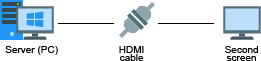
If you have just one room you can set up using just one Windows computer and two screens.
- Single computer setup
- Details
- Server:
- Use one computer as both server and client
- Client screens:
- Use a second computer screen, place it in a room and connect it with a long HDMI cable.
- Drawbacks:
- No or limited touchscreen and keypad possibilities. Multiple rooms on different screens of one computer is tricky. You could get it to work using one computer, but you'll probably end up with multiple server-side computers due to audio restraints.
Q. How should I set up a multi-computer environment?
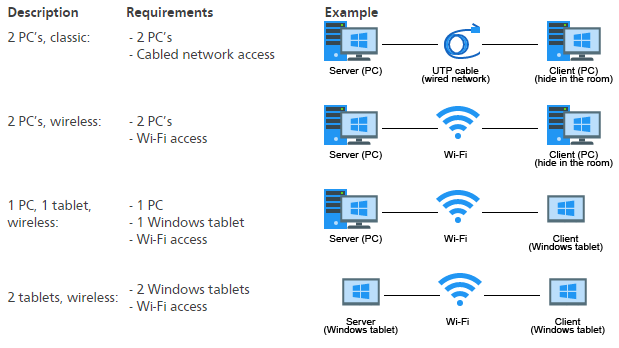
If you have multiple rooms, please consider using multiple Windows computers or Windows tablets.
- Multi-computer setup
- Details
- Server:
- Use one server computer to host multiple room clients.
- Client screens:
Use actual computers in the rooms as clients. Usually you want tablets for this because they are small, easy to attach, sleek and have touchscreens. They must be tablets with Windows 10.
An alternative is to hide a computer in the room where it is not accessible to the players and place the screen somewhere near it.
Please note that a network connection (cabled or wifi) is required.
- Drawbacks:
- Usually multiple computers needed.
Q. How should I set up for multiple rooms?
This is the recommended configuration for multiple rooms:

Q. Does Escaperoom Software work with ChromeCast?
No; ChromeCast has a different purpose and does not stream desktop applications well.
Please use MiraCast as an alternative (think of Miracast as a true wireless HDMI cable), or use another desktop-streaming solution. You can also connect a second screen using a cable, or use a second Windows computer or Windows tablet.
Q. What Home Automation (Z-Wave) devices should I use?
The following types of devices are currently supported:
- Z-Wave USB stick (plug this into your computer to host a Z-Wave mesh network)
- Z-Wave switches (plug these in and you are able to turn the switch on/off using Escaperoom Software)
- Z-Wave room/window sensors (connect to the USB stick to detect movement using Escaperoom Software)
Although many devices are supported, the following devices are currently recommended:
 Aeotec Z-Stick
 Aeotec Smart Switch 5/6
 Aeotec Door/Window Sensors
Q. Are there examples available for microcontroller connectivity?
Yes; microcontroller sample projects are included in the download.
Microcontrollers are mini-computers that can be integrated into rooms or props in order to initiate actions. Sensors allow microcontrollers to detect light, humidity, temperature, sound levels, etc. Microcontrollers can also be used to trigger an electronic effect such as lights, sounds, servo motors, etc.
The trial version includes sample projects for API, serial and TCP connections that demonstrate the following:
- Receiving messages from the server, causing the microcontroller device to perform an action
- Causing the microcontroller to send a message to the server, triggering a specific script to run
Q. What keypad/barcode scanner devices should I use?
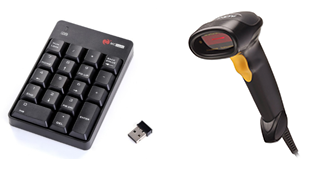
Any device that behaves like a normal keyboard can be used. For example: connect a numpad to the client computer.
You can also use a simple USB barcode scanner. A USB barcode scanner simply "writes" the barcode on the computer and presses ENTER afterwards, as if it were a keyboard. You can test this behaviour in Windows Notepad. If your USB barcode scanner does not give an ENTER after scanning a code, please consult the manual of your USB barcode scanner to configure this.
Q. Does the software include an intercom solution so that the Game Master (GM) can listen and talk to the players?
No. We recommend a separate intercom solution for this.
A viable and free example is Discord, which runs cross-platform (both on Windows and Android), and can even be expanded with a voice changer plugin (for example VoiceMod, which itself has a free and a paid version).
Q. What is a recommended software update strategy?
The key words are "predictable outcome". Set up a test environment: a computer where you have the current version installed, as well as your room.
When a new version is released, download and install the update in the test environment. In this way you will be able to check out the changes without affecting and interfering with your production (live) environment.